Staying compliant with FBR regulations is becoming essential for retail businesses in Pakistan. Since the government is actively encouraging digital tax reporting, many retailers now want a clear and simple explanation of the entire process. This FBR POS Software Guide will help you understand how to register, integrate, and remain fully compliant without confusion.
What Is FBR POS Integration?
FBR POS integration is a system that connects your billing software with the Federal Board of Revenue. Whenever you generate an invoice, it automatically syncs with the FBR server. As a result, your sales remain transparent, tax calculations stay accurate, and reporting becomes stress-free.
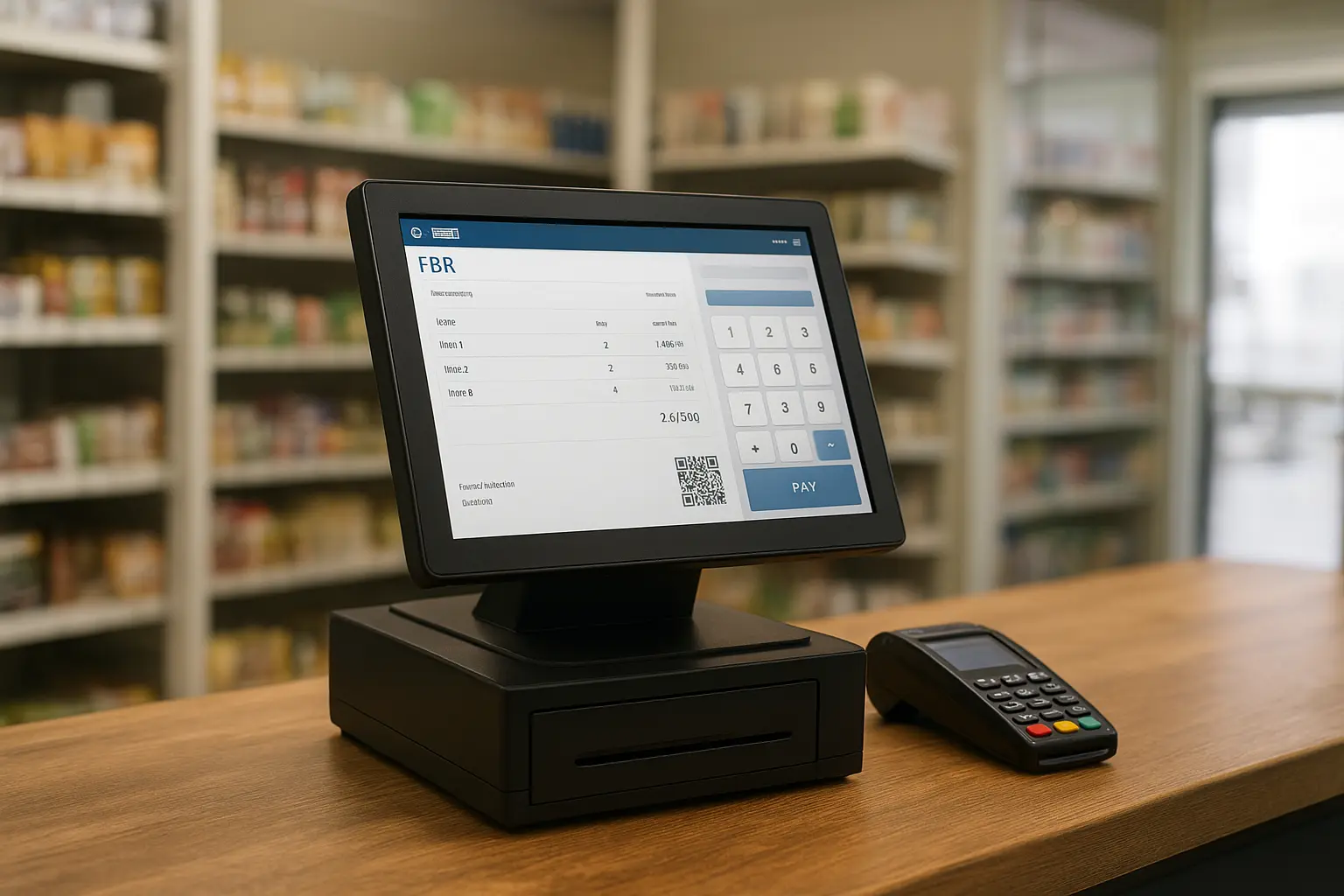
Moreover, the system ensures that every invoice includes a unique FBR number and QR code, making verification easier for customers and auditors.
Why Your Business Needs FBR POS Software
This FBR POS Software Guide is not just about legal obligations; it is also about improving your business operations. When your POS is fully integrated:
- Sales are recorded in real time
- Reports become accurate and easy to track
- Tax compliance improves instantly
- Penalties and legal risks decrease dramatically
- Your business gains credibility with digital receipts and QR codes
Additionally, if your store falls under Tier-1 Retailer criteria, integrating with FBR is mandatory.
How to Register Your Business for FBR POS
To simplify the entire process, here is a clear, step-by-step approach:
Step 1: Log in to IRIS
First, visit the FBR IRIS portal and sign in using your NTN and password. If your profile is incomplete, update it immediately so the system accepts your registration.
Step 2: Begin POS Registration
Next, open the Sales Tax → POS Registration section. After that, enter the details of your business, shop, and POS devices.
Step 3: Generate FBR Credentials
Once everything is submitted, the system provides your Integration Key, Authorization Code, and Token. You will need these to link your POS software with FBR.
Step 4: Verify Registration
Finally, create a test invoice. If the invoice contains a QR code and appears in your FBR dashboard, the registration is successful.
How to Integrate Your POS Software
Although integration seems technical, the process usually takes just a few minutes. A complete FBR POS Software Guide must include these steps:
- Install or update your POS software
- Open the integration settings
- Enter your FBR Key, Code, and Token
- Enable invoice synchronization
- Generate a test sale and confirm it with FBR
Soon after the test confirmation, your POS will start sending invoices automatically.
How to Stay Fully Compliant After Integration
Once your system is connected, you must follow certain guidelines to avoid penalties. Fortunately, staying compliant is simple:
1. Always Use FBR-Approved Invoices
Every invoice should include a QR code, tax details, and an FBR number. This ensures transparency.
2. Avoid Manual Billing
Handwritten receipts or external apps cause compliance issues immediately.
3. Keep Your Software Updated
Since FBR rules change from time to time, updated software helps you avoid unexpected errors.
4. File Monthly Returns
As your invoices sync automatically, filing your sales tax return becomes much easier.
5. Use Only One Active POS System
Multiple billing systems can create reporting conflicts and increase the risk of penalties.
Following these practices regularly keeps your business fully compliant without unnecessary stress.
Common Mistakes to Avoid
Even though integration is simple, some businesses still make avoidable mistakes. To help you stay safe, here are the most common issues:
- Using two different billing systems
- Editing invoices after syncing
- Ignoring POS error messages
- Forgetting to verify whether invoices reached FBR
Fortunately, you can avoid all these issues by using a reliable and updated POS solution.
How Oneclick Helps With FBR POS Integration
If you want a smooth and fast onboarding experience, our team provides complete support. We help you register, integrate, and maintain compliance throughout the year. Additionally, our software includes:
- Built-in FBR integration
- Automatic invoice reporting
- Inventory and sales management
- Easy tax calculations
- Retail, wholesale, and pharmacy modules
- Professional digital receipts with QR
With these features, you can manage your business more confidently and save valuable time.
Conclusion
Digital tax compliance is becoming essential for Pakistan’s retail businesses. Fortunately, with the right guidance and software, the process becomes much easier. This FBR POS Software Guide helps you understand how to register, integrate, and stay compliant without confusion.
At Oneclick, we help businesses register, integrate, and fully comply with the FBR POS system—so you can focus on sales while we handle the technical side. Contact us today to get your FBR-approved POS software ready for your shop.